Provider: AIO Corp. · Works in: Zoom Meetings · Requires Zoom desktop 7.0.5 or later
AIO Breakout Rooms Editor is a Zoom App that helps a meeting host assign participants to breakout
rooms quickly and consistently, from a reusable roster. It runs entirely inside the Zoom client and
has no backend server.
1. Adding the app
From an authorization link (beta / internal sharing)
Open the authorization URL provided by your organizer in a web browser.
Review the requested permissions and choose to add the app for yourself.
Confirm to complete the installation.
From the Zoom App Marketplace
Open the app's Marketplace listing.
Click Add and approve the requested permissions.
2. Opening the app in a meeting
Start or join a Zoom meeting as the host or co-host
(breakout-room controls require this role).
Click Apps in the meeting toolbar.
Select AIO Breakout Rooms Editor. The app opens in the side panel and shows
"Zoom connected" when it is ready.
3. Using the app
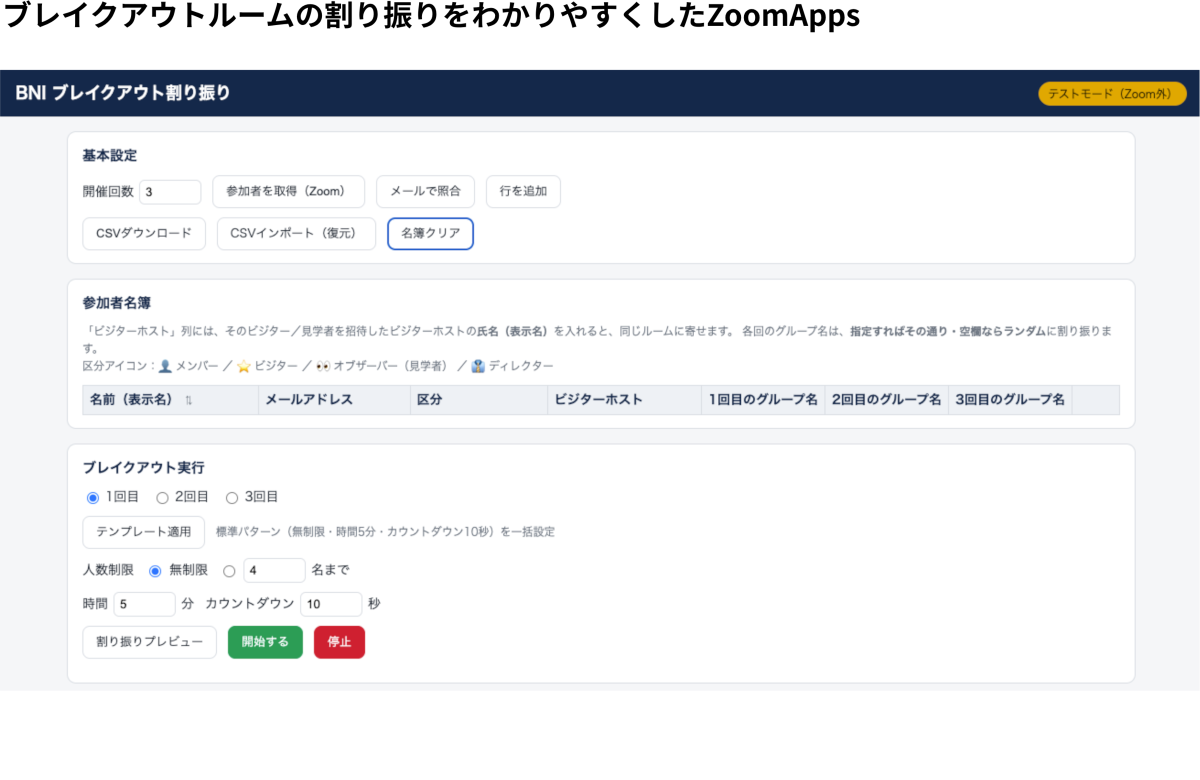
Set the number of rounds (how many breakout sessions you will run).
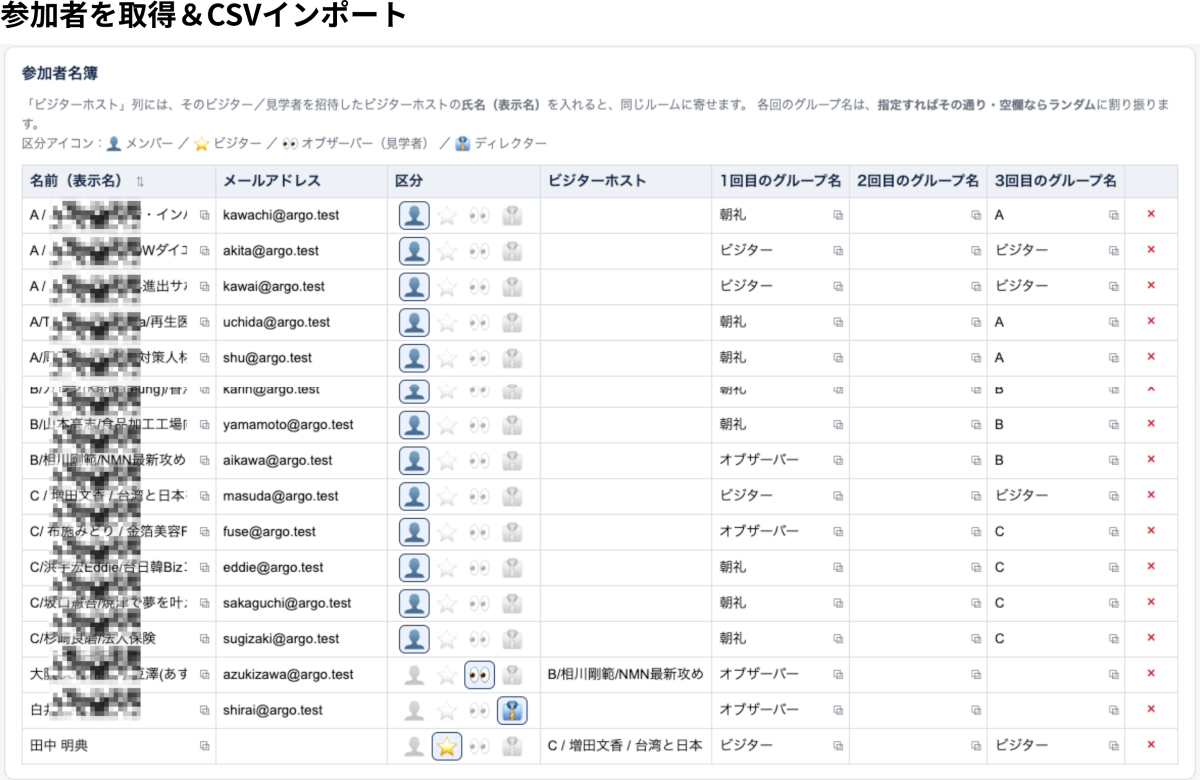
Prepare the roster. Import a CSV (or add rows manually). Each person has an
email, a role (Member, Visitor, Observer, Director), an optional "visitor host", and a group name
for each round.
Get participants. Click Get participants to pull the current meeting
participants, then Match by email to link them to the roster (display name is used as a
fallback). Participants are asked to consent to sharing their email.
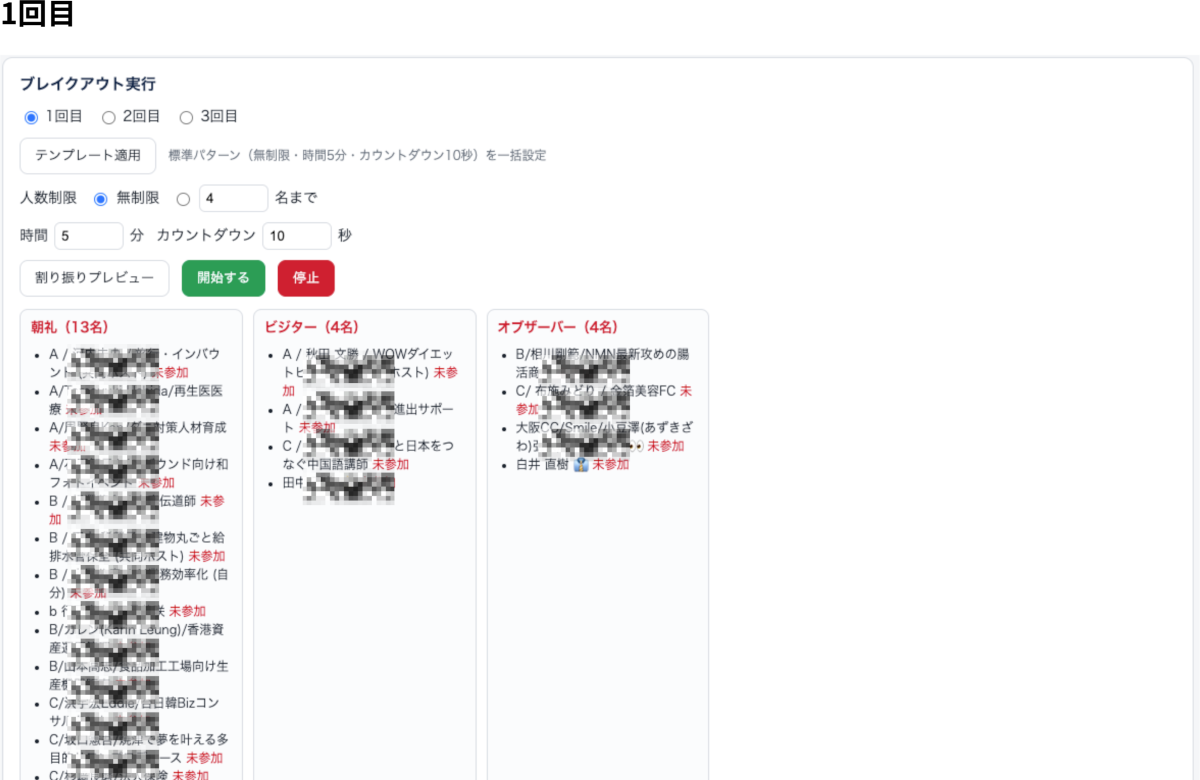
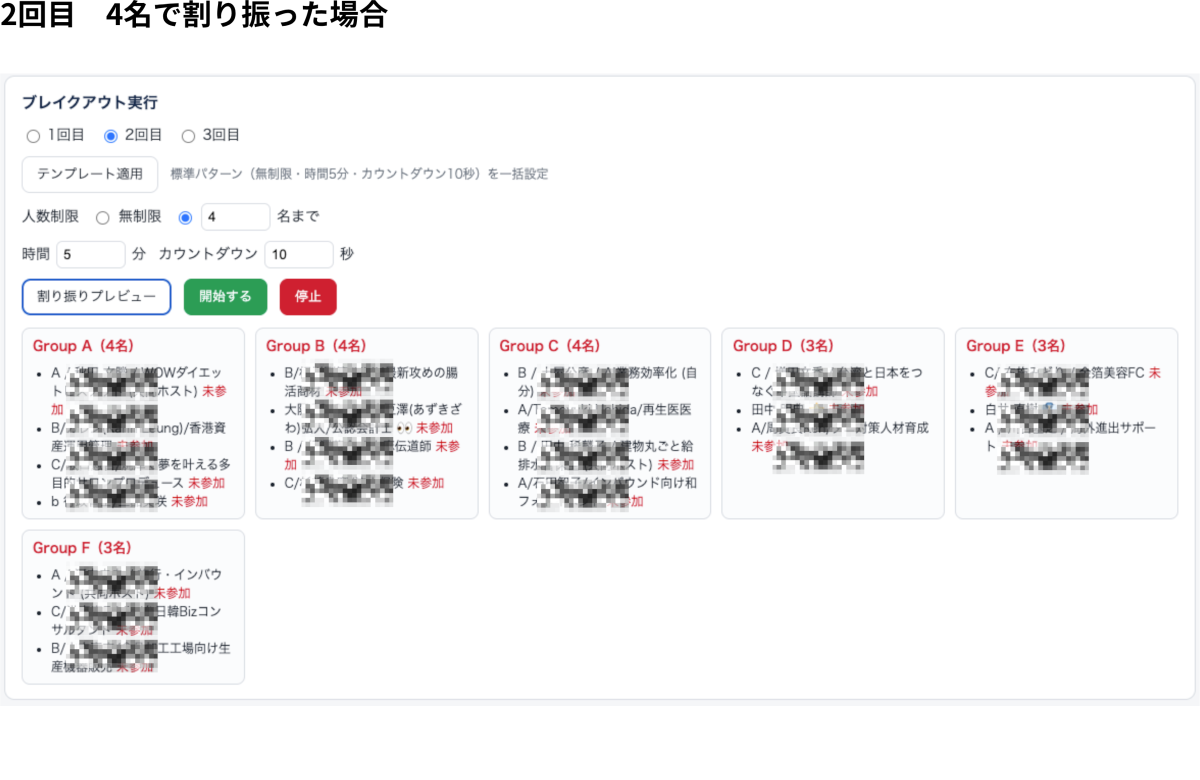
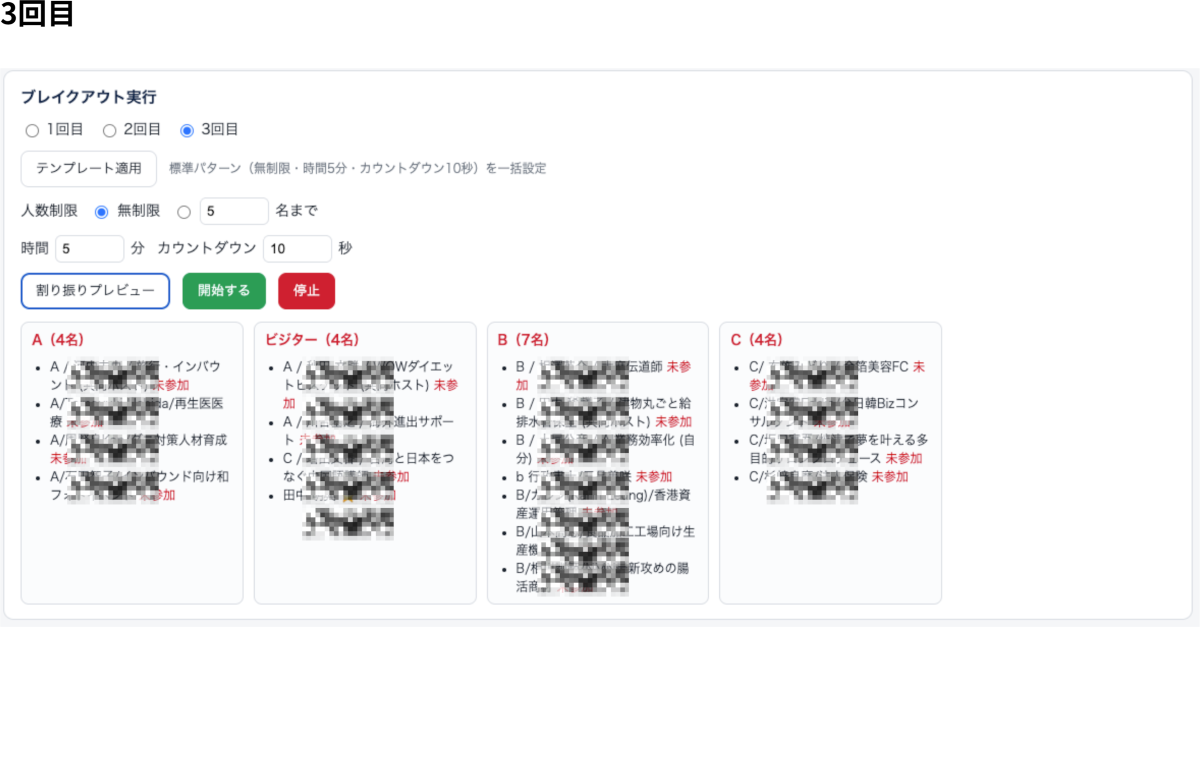
Assignment rules. For each round, a specified group name sends a person to that
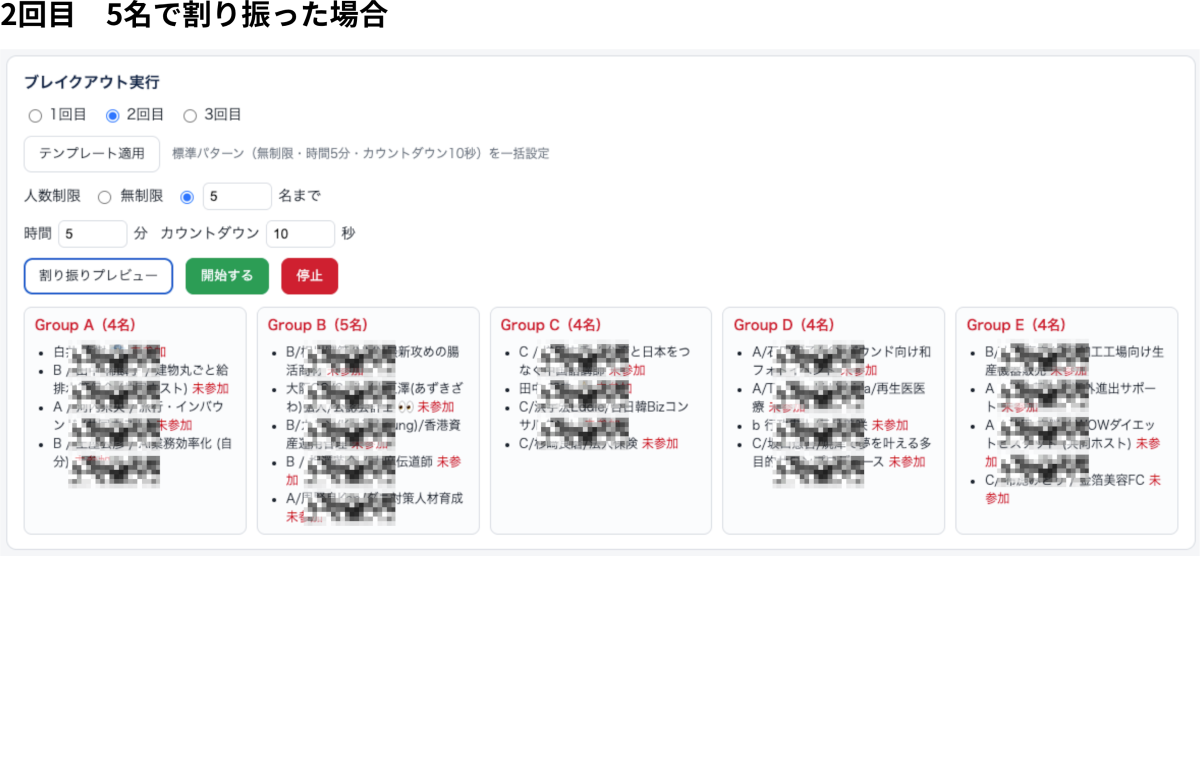
room; a blank group name means a balanced random split (with an optional per-room size limit). A
visitor or observer with a "visitor host" is placed in the same room as that host.
Preview the room layout, then set the round, the per-room limit, the duration,
and the countdown.
Click Start to open the breakout rooms, and Stop to close
them.
Optionally download the roster as CSV to reuse it next time.
Privacy: all data is processed in the browser during the meeting and is never sent to
or stored on any server. See the Privacy Policy.
4. Screens
The screenshots below show the app in use (participant names are masked).
Overview — roster and breakout controls in one panel (main screen).Roster — import a CSV and pull meeting participants; each person has a role, an optional visitor host, and a group name per round.Round 1 — a preview grouped by named groups (e.g. members, visitors, observers).Round 2 — balanced random split with a limit of 5 per room.Round 2 — the same participants split with a limit of 4 per room.Round 3 — a preview using another set of named groups.
5. Removing the app
Sign in to the Zoom App Marketplace at marketplace.zoom.us.
Go to Manage → Added Apps (or open the app's listing).
Click Remove next to AIO Breakout Rooms Editor and confirm.
Because the app stores no data, removing it leaves nothing behind on any server. Any CSV you saved
remains on your own device until you delete it.
6. Troubleshooting
Breakout controls unavailable: confirm you are the host or co-host.
Participant not matched: ensure the email consent was given, or add the person
to the roster by display name.
App does not load: update the Zoom desktop client to 7.0.5 or later.